![foursixty_logo_vector.png]](https://support.foursixty.com/hs-fs/hubfs/foursixty_logo_vector.png?height=12&name=foursixty_logo_vector.png)
Before starting this process, you need to determine if this is the right one for your needs.
- If you just need access to your own Instagram posts and UGC where others tag your account, then continue with the steps below.
- If you require access to your own Instagram posts and also want to get any posts from others that you are tagged and/or @mentioned in, then you should use the Facebook Business Page method instead.
To initialize a connection in Foursixty to your Instagram content using this connection method, please follow the steps below:
PLEASE NOTE: This process does not require you to log into Instagram in advance, but if you do log into Instagram on another tab before completing these steps, this process certainly goes faster.
- In the Foursixty Dashboard, click on the Menu (in the top-right corner), then click on the networks option. Alternately, you can also click on this link to be taken there directly.
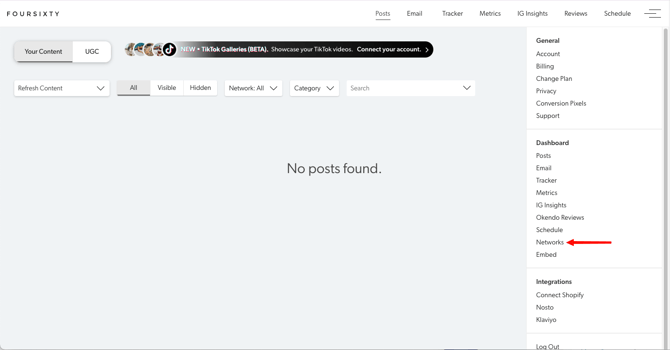
- You will see options to connect multiple types of accounts (and will see if any others are already connected).
We will be selecting the second option (Instagram (Instagram Login)) so please click on that option to proceed.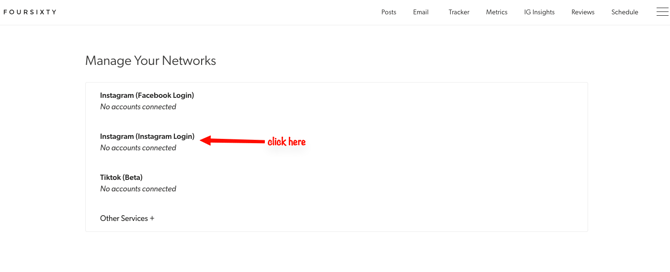
- In the next screen that you see, you will need to start the authentication with your Instagram account. Please click on the blue button to start the process.
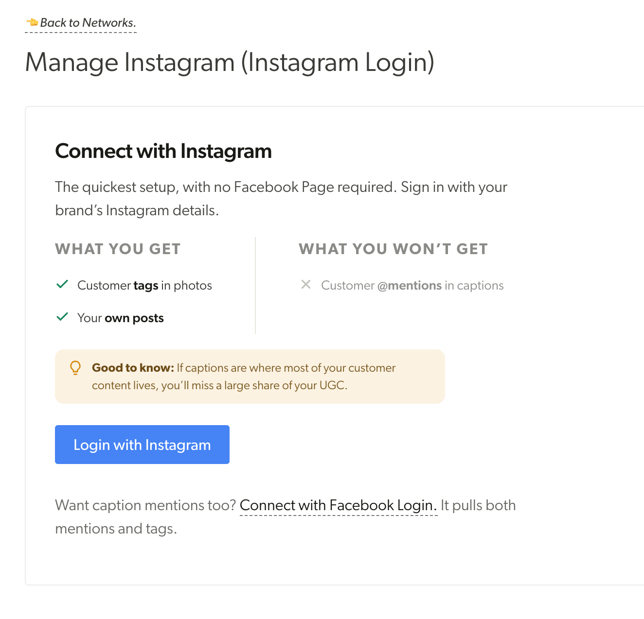
- If you have not already logged into Instagram on a different tab, you will be prompted to log-into your Instagram account.
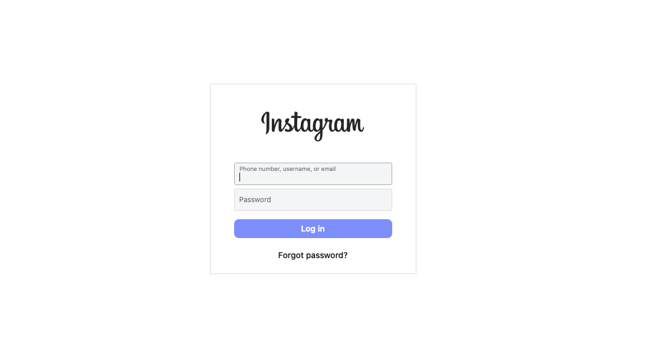
If you have already logged into Instagram on a different tab, then you can skip this step and proceed to step 5 as it will auto-detect that you are already logged-into your Instagram. - Once your Instagram connection is confirmed, you will be presented with a screen to confirm the permissions that Foursixty needs to pull your Instagram data.
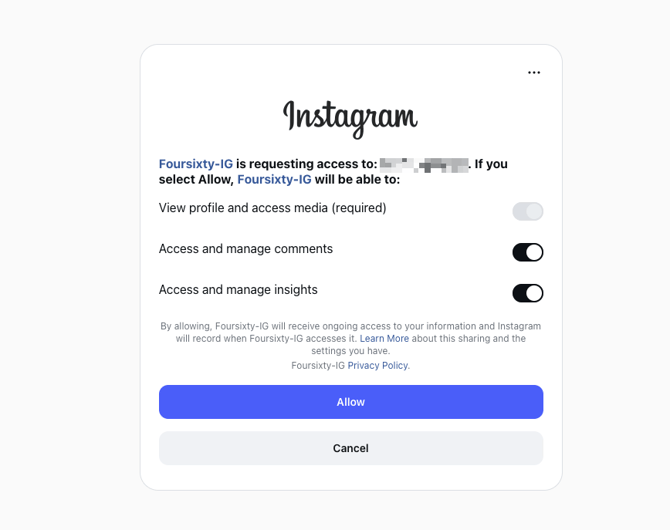
Please ensure that the switches are all on (like in the screenshot above) and then click on the Allow button. - You will now get a screen to complete a final confirmation that the Instagram account is the correct one that you want to connect to Foursixty.
- If the account is correct, then click on the blue Confirm button.
- If the account is not correct, click the Cancel connection button, log out of Instagram.com, and start the process over again.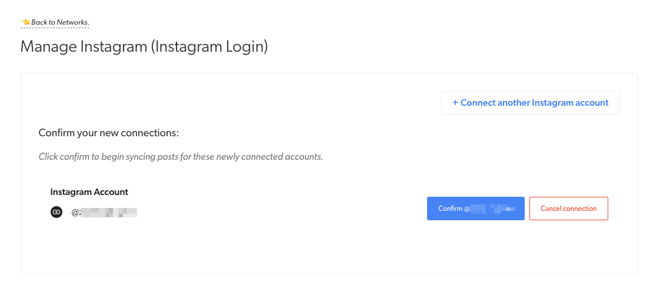
- After confirming the connection, you will be brought back to the Manage Your Networks screen and will see a blue confirmation bar on the screen and will see the Instagram account as one of the Connected accounts.
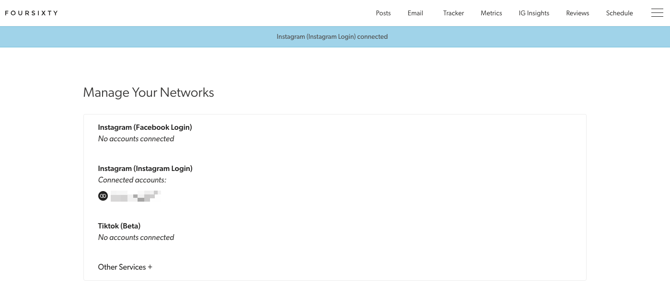
- Now that your Instagram account is connected, your feed will start flowing into your account during the next server sync.
NOTE: This is NOT an immediate process and can take up to 45 minutes to sync for the first time.
If you have any questions or concerns about this or any other process, please feel free to reach out to helpme@foursixty.com and we would be happy to help out.